Posts

Connecting to Your Linux Instance from Windows Using PuTTY

Image
1.     To generate an RSA key pair to work with version 2 of the protocol, type the following command at a shell prompt: 2.   ssh-keygen -t rsa [pravesh@localhost ~]$ ssh-keygen -t rsa Generating public/private rsa key pair. Enter file in which to save the key (/home/pravesh/.ssh/id_rsa): pravesh Enter passphrase (empty for no passphrase): Enter same passphrase again: Your identification has been saved in pravesh. Your public key has been saved in pravesh.pub. The key fingerprint is: ed:5e:fb:5d:87:a2:12:ac:5d:98:1c:59:df:e3:81:1a pravesh@localhost.localdomain The key's randomart image is: +--[ RSA 2048]----+ |                 | |          .      | |         o . o   | |        o.E o +  | | ...
Installation Guide of cPanel DNSONLY

To install cPanel DNSONLY, perform the following steps: 1. To open the /home directory, run the following command: cd /home 2. To fetch the latest installation files from cPanel's servers, run the following command:.. curl -o latest-dnsonly -L https://securedownloads.cpanel.net/latest-dnsonly 3. To open and execute the installation files, run the following command: sh latest-dnsonly

How to Install GlassFish on a CentOS 6 VPS

Image
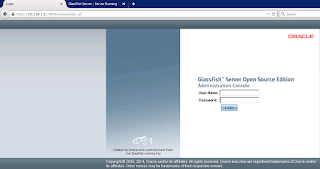
You can download the JDK here:  http://www.oracle.com/technetwork/java/javase/downloads/index.html I'm using the latest, which is JDK 8, update 24. The JDK is specific to 32 and 64 bit versions. My CentOS box is 64 bit, so I'll need: jdk-8u45-linux-x64.tar.gz. Download the appropriate JDK and save it to a directory. I'm saving it to /root. Move (mv) or copy (cp) the file to the /opt directory: Create the directory /usr/java. 1.            [root@testserver ~]# mkdir /usr/java 2.            [root@testserver ~]# cd mkdir /usr/java 3.            [root@testserver ~]# tar -xvf /root/jdk-8u45-linux-x64.tar.gz 4             [root@testserver jdk1.8.0_45]# pwd /usr/java/jdk1.8.0_45 Set the JAVA_HOME path. This is where we installed...

Restrict RDP access to certain IP addresses on Windows 2008 Server

It is recommended that you restrict your Windows 2008 server’s RDP access to certain IP addresses only. This will protect your servers from unauthorized RDP access. To restrict RDP access for Windows 2008 server, you can easily do it using Windows Firewall with Advanced settings. To restrict the access, you will need to follow the below steps: Go to Control Panel -> Administrative Tools -> Windows Firewall with Advanced Settings -> Inbound Rules -> Remote Desktop (TCP-In) -> Properties -> Scope -> Local / Remote IP Address Once you set the scope, you will be able to access RDP only from the specified scope. Please note that if you have dynamic IP address, it is not recommended to set one IP address however if your dynamic IP range is fixed, you can specify entire subnet.

Create a MySQL Database, Username, Password, and Privileges from the command line

Step 1: Login to MySQL ( you will need an account ) user@server:~$ mysql -u mysql_user -p Enter password: Step 2: Create the Database mysql > create database db_name; Step 3: Verify that it’s there mysql > show databases; Step 4: Create the User mysql > create user db_user; Step 5: Grant privileges while assigning the password mysql > grant all on db_name.* to 'db_user'@'localhost' identified by 'db_password'; *Note: The localhost field usually doesn’t have to be edited, but you can set it to the specific address. The above example grants all privileges, obviously. But you will likely want to limit privileges under many circumstances. These parameters include select, insert, and delete. Choose all that apply and separate by comma, thusly: mysql > grant select, insert, delete on db_name.* to 'db_user'@'localhost' identified by 'db_password';

How to install Softaculous in WHM

Image
1) In order to install Softaculous ensure ionCube Loaders are enabled. If it is not enabled you can go to WHM >> Tweak Settings >>PHP >> Select ioncube from Loader to use for internal cPanel PHP 2) Now Login to the server as root. 3)Go to the directory /usr/local/cpanel/whostmgr/docroot/cgi cd /usr/local/cpanel/whostmgr/docroot/cgi 4) Download Softaculous wget -N http://www.softaculous.com/ins/addon_softaculous.php 5) Change the permissions to 755 chmod 755 addon_softaculous.php That’s for the command line. Now login to WHM 6) Go to WHM > Plugins> Softaculous – Instant Installs

How to change email password through webmail

Image
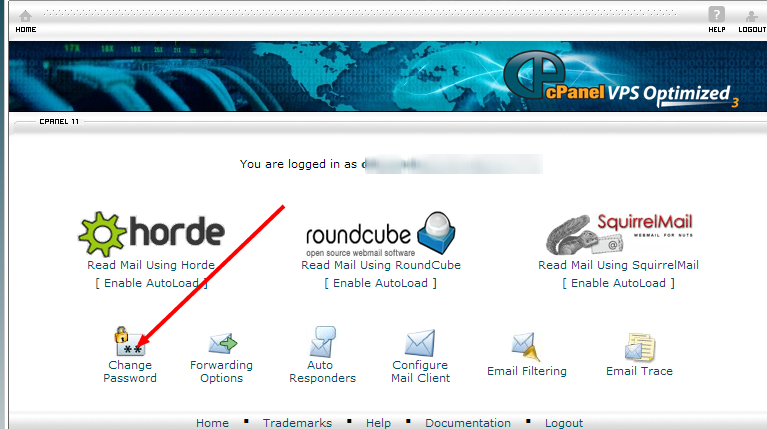
1.Login to your webmail account (Example: http://www.domain.com/webmail) 2.From the webmail home, click on the Change Password icon.  3.Now enter your new password in the provided field and click on change button. If you have configured your e-mail account in Outlook Express, MS Outlook or any other e-mail client, and configured it to remember the password, then you will have to change it to the new password.